

Summary
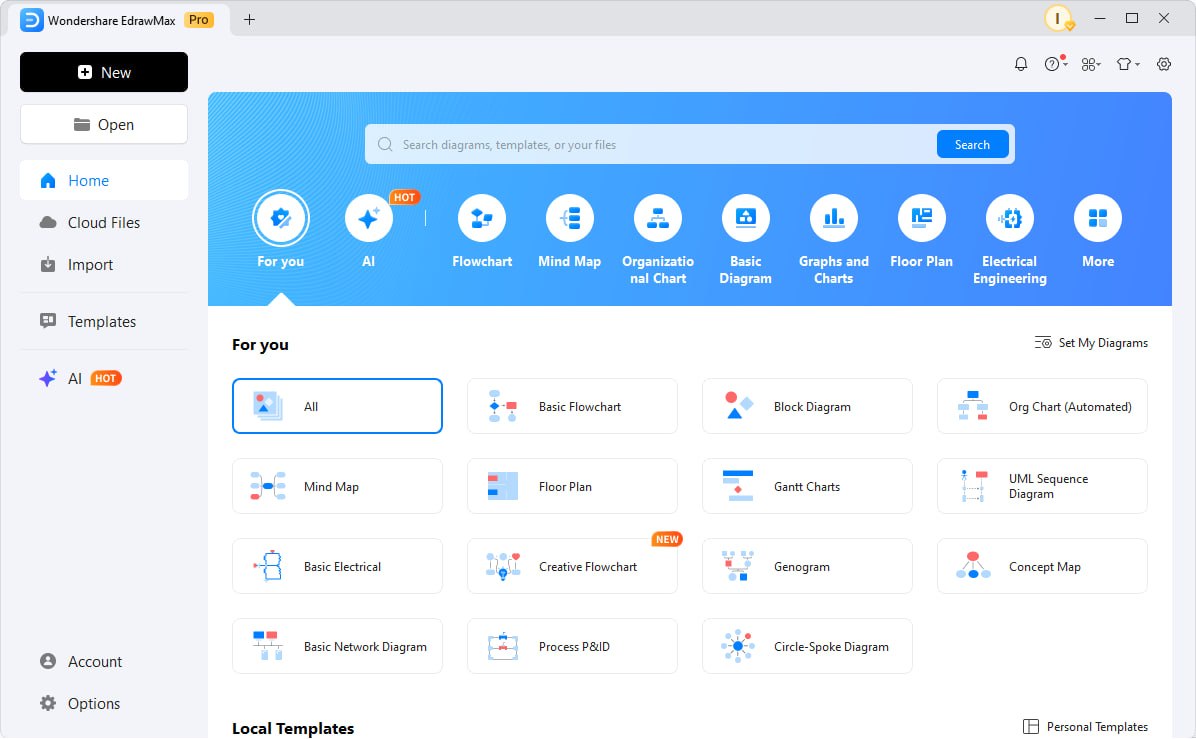
EdrawMax 15.2.1.1532 is an AI-powered diagramming software developed by Wondershare. It allows you to create over 280 types of diagrams, including flowcharts, mind maps, organizational charts, network diagrams, floor plans, and P&ID drawings. The first step to using this powerful tool is proper installation. Visit the official Wondershare EdrawMax website and download the version compatible with your operating system. The software supports Windows, macOS, and web browsers with seamless cloud sync across all platforms.Understanding The Dashboard
The EdrawMax dashboard is divided into five main areas that work together efficiently. On the left side, you will find the template gallery organized by categories like flowcharts, mind maps, org charts, network diagrams, floor plans, and engineering diagrams. Each category contains dozens of pre-built templates that you can use as starting points. The center area displays your recent projects and a large “Create New” button. The top menu bar contains File, Edit, View, Insert, Page Layout, and Tools options.On the right side of the dashboard, you will see the symbol library panel. This is where it shines, it contains thousands of vector symbols for different diagram types. When you select a diagram category, the symbol library automatically switches to show relevant symbols.
The AI assistant icon sits in the top right corner, represented by a small sparkle symbol. Clicking this opens a text box where you can type prompts like “create a project management flowchart” or “design a three-level org chart.”
Creating First Project
To create your first project, click the “Create New” button on the dashboard or press Ctrl+N on your keyboard. You will be presented with a list of diagram categories. For this tutorial, select “Flowchart” because it is the most common diagram type. A blank canvas will open with a default page size of A4 in landscape orientation. The first thing you should do is set your page properties. Go to Page Layout in the top menu and adjust paper size, orientation, and margin settings according to your needs.Now use the AI-powered diagram generation feature. Click the AI assistant icon and type a prompt such as “create a customer support ticket handling flowchart.” Within five to ten seconds, it will generate a complete flowchart with decision points, action boxes, and connectors. This feature, introduced in version 15.2.1.1532, automatically transforms text prompts into editable vector diagrams. You can also paste raw text or import data sheets, and the AI will convert them into structured diagrams.
Once the AI generates the initial diagram, you can manually edit any element by clicking on it. To add a new shape, drag any symbol from the right-side library onto the canvas. To connect two shapes, hover near the edge of one shape until a blue arrow appears, then click and drag to the second shape.
Common Workflow Steps
After creating your first project, you will repeat several common workflow steps. Adding shapes is straightforward open the symbol library on the right, search for the shape you need using the search bar, and drag it onto the canvas.It supports over 280 diagram types, so the symbol library adapts to whatever you are building. To add text to any shape, double-click the shape and start typing. You can format text using the mini toolbar that appears above the selected shape, which offers font selection, size, bold, italic, alignment, and color options.
Exporting Files
Once your diagram is complete, exporting it in the correct format is essential. EdrawMax 15.2.1.1532 supports exporting to over fifteen different file formats. Click File in the top menu, then Export, and choose your desired format.The most commonly used formats are PDF for document sharing, PNG for high-quality images, JPEG for smaller file sizes, SVG for web graphics, and Word or PowerPoint for direct insertion into office documents. For each format, you can adjust export settings such as resolution (72 to 300 DPI), image quality, and background transparency.
If you need to share your diagram with someone who does not have EdrawMax, exporting as PDF or PNG is the best option. For teams collaborating on the same diagram, save your file to EdrawCloud. Click File > Save to Cloud.
This uploads your diagram to Wondershare’s cloud storage, where you can generate a shareable link. You can set permissions to view only, comment only, or edit. Recipients do not need an EdrawMax license to view cloud-shared diagrams; they can open them in any web browser.
Troubleshooting
Even well-designed software can encounter issues. The most common problem in EdrawMax 15.2.1.1532 is the software running slowly when working with very large diagrams. If your diagram contains more than 500 shapes, try reducing the number of visible layers or splitting the diagram into multiple pages.You can also go to View > Performance and enable “Simplified Rendering Mode,” which disables some visual effects but keeps editing smooth. Another common issue is missing symbols in the library. If you cannot find a specific symbol, use the search bar at the top of the symbol panel. Type the symbol name, and it searches across all installed libraries.
Productivity Tips
To become truly efficient in EdrawMax 15.2.1.1532, master these productivity techniques. Keyboard shortcuts save the most time. Press Ctrl+D to duplicate any selected shape. Press Ctrl+G to group multiple shapes together so they move as one unit. Press Ctrl+Shift+G to ungroup. Press F2 to edit text of the selected shape without double-clicking. Press Ctrl+Shift+C to copy formatting from one shape and Ctrl+Shift+V to paste it onto another. These shortcuts alone can cut your diagramming time in half.Use templates as starting points rather than building from scratch. It includes thousands of pre-built templates for network topologies, floor plans, org charts, and P&ID diagrams. When you find a template you like, click “Use Immediately” and then customize every element. You can save your own custom templates by clicking File > Save As Template. Name your template and choose a category.
HomePage
Note: This price Is For Single PC License. If You Want To Buy KeyGen Then You Have To Go On Telegram ID @playoutking
Our Paid Service
Looking for full-version software without limitations? You’re in the right place. Instead of wasting time on unreliable or outdated sources, unlock a powerful bundle of 10k+ premium tools covering marketing, SEO, broadcasting, automation, and business productivity — all in one place at an affordable price. This collection is specially curated for freelancers, agencies, and business owners who want fast, real results with professional tools.
Direct contact: :
Join Us For Update :
Join Us For Updated :
You Can test through AnyDesk before Buying,
And When You Are Satisfied, Then Buy It.
Unlimited PCs/Users.
Join today and upgrade your workflow with premium tools.
Looking for full-version software without limitations? You’re in the right place. Instead of wasting time on unreliable or outdated sources, unlock a powerful bundle of 10k+ premium tools covering marketing, SEO, broadcasting, automation, and business productivity — all in one place at an affordable price. This collection is specially curated for freelancers, agencies, and business owners who want fast, real results with professional tools.
Direct contact: :
Join Us For Update :
Join Us For Updated :
You Can test through AnyDesk before Buying,
And When You Are Satisfied, Then Buy It.
Unlimited PCs/Users.
Join today and upgrade your workflow with premium tools.