
Summary
CareUEyes Pro 2.5.1 is a screen protection utility designed for anyone who spends long hours in front of a computer. If you are new to eye care software, you will quickly discover that Windows built-in Night Light is too basic, it only adds a yellow tint without adjusting brightness or reminding you to take breaks. Unlike overlay-based dimmers that make screens look muddy or gray, it uses GPU-level gamma adjustment. Text stays sharp, colors remain vibrant, and screenshots are not affected. You can set your screen to a warm 3000K night mode, but your screenshots will still capture original, bright colors.CareUEyes ScreenShots

Main Editing Workspace
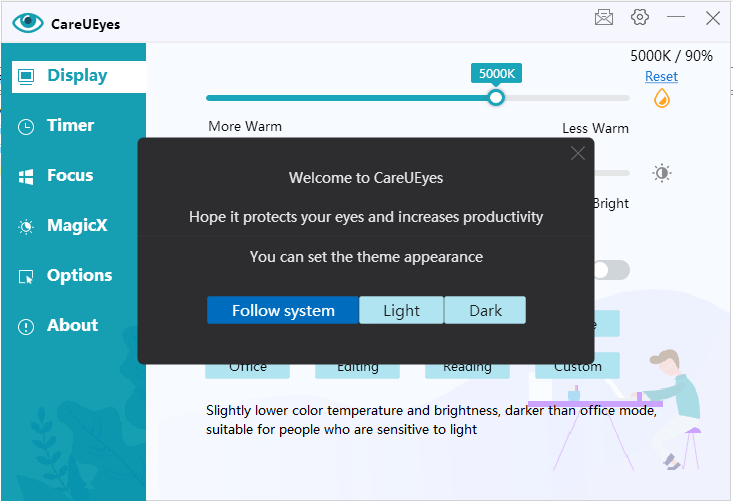
The CareUEyes interface is intentionally minimalist. The main control panel stays on top of other windows by default, but you can minimize it to the system tray.Display Tab: It contains a color temperature slider (0K to 10,000K) and a brightness slider (1% to 100%). Below the sliders are eight preset buttons: Normal, Custom, Game, Movie, Office, Night, Edit, and Read. Clicking any preset immediately applies the saved settings. The Custom preset allows you to save your own combination of color temperature and brightness.
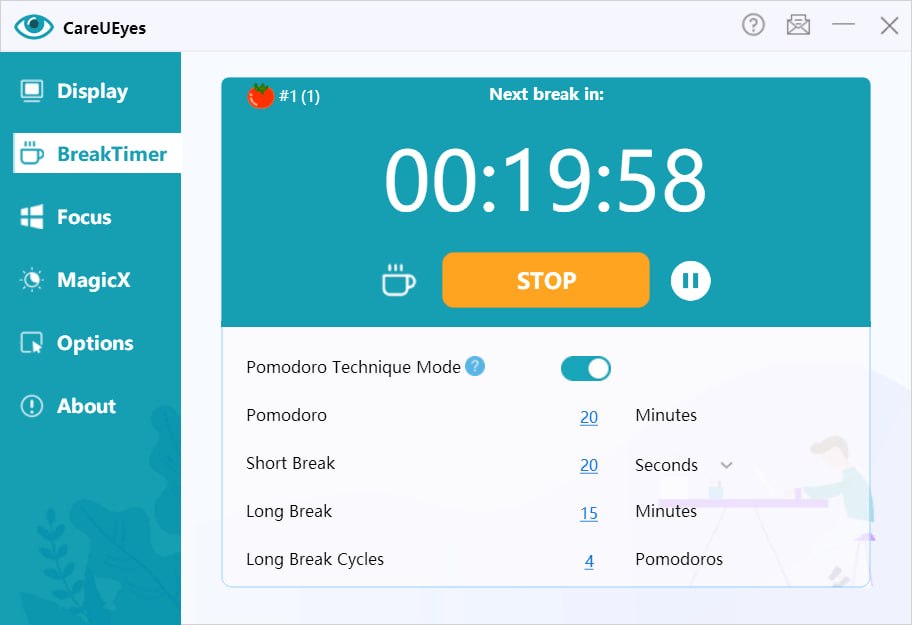
Timer Tab: It controls the break reminder. You set how often to be reminded (default 45 minutes) and how long the break should last. You can also enable “Lock screen during break” to enforce rest—the screen locks and you cannot work until the break ends. The 20-20-20 rule preset reminds you every 20 minutes to look at something 20 feet away for 20 seconds.
Focus Tab: It helps reduce distractions. Focus Read highlights the active window and dims everything else. Focus Blur blurs background windows. Magic Window darkens or grays out any window you choose. These features are valuable for writers, programmers, and anyone who works with multiple windows open.
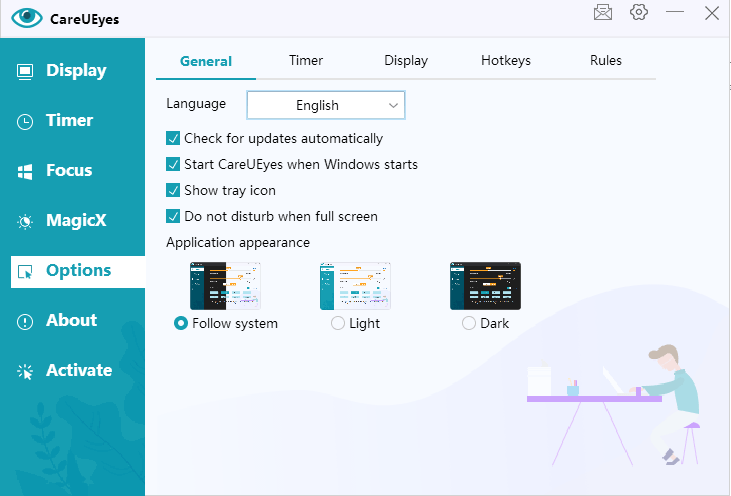
Settings Tab: It allows configuration of hotkeys (Ctrl+Shift+B for blue light toggle, Ctrl+Shift+F for focus mode), startup behavior, and language selection.
Important Settings
Color Temperature: It is the most important setting. Lower temperatures (3000K-4000K) are warmer and reduce blue light significantly; use these at night. Higher temperatures (6500K-7500K) are cooler and more natural for daytime work. The default is 6500K (neutral white).Auto Brightness: It automatically adjusts screen brightness based on your local sunrise and sunset. Enable this to reduce eye strain in dark rooms without manual adjustments. The software reads your location from system settings or you can enter coordinates manually.
Break Reminder Interval: This should be set to 20 minutes if you follow the 20-20-20 rule. Set to 45 minutes if you prefer longer work sessions with fewer interruptions. The reminder appears as a desktop notification; you can dismiss or postpone it.
Multi-Monitor Sync: It is essential for users with two or more screens. You can adjust each monitor independently or sync all monitors to the same color temperature and brightness. This is a feature that Windows Night Light does not support.
Screenshot Protection: It is enabled by default. Your screenshots are never tinted or dimmed; they capture original colors regardless of your CareUEyes settings. This is critical for designers and anyone who needs to share screen captures.
Performance During Projects
It is extremely lightweight. CPU usage is under 0.5% on modern processors. Memory usage is approximately 30-50MB. You will not notice any performance impact even during gaming or video editing. The auto-brightness feature transitions smoothly. When the sun sets, the brightness decreases gradually over 30 minutes. You never notice a sudden change. Break reminders appear reliably. The notification popup does not steal focus from your active application. You can dismiss it with one click and continue working.Multi-monitor performance is excellent. Independent brightness controls work correctly even on mismatched monitors (one 4K, one 1080p). There is no lag when adjusting settings. The only performance consideration is that very low brightness settings (below 5%) may make some OLED screens appear uneven. This is a hardware limitation, not a software issue.
Better Alternatives
| Software | Key Features | Pricing | Best For |
|---|---|---|---|
| CareUEyes Pro | GPU-level dimming, multi-monitor, focus mode, break timer | $ (subscription) | Professional eye protection |
| f.lux | Auto color temperature, free | Free | Budget users, basic needs |
| Windows Night Light | Basic blue light filter | Free (built-in) | Minimal protection |
| Iris | Blue light filter, break timer | $ (one-time) | Advanced users, multiple devices |
| LightBulb | Open-source, gamma adjustment | Free | Technical users |
| Redshift | Linux-based | Free | Linux users |
Free tools like f.lux and Windows Night Light only adjust color temperature. They do not control brightness independently, do not include break reminders, and do not support multi-monitor independent adjustment. CareUEyes is a complete solution.
Why Choose CareUEyes Pro Over Iris?
Iris offers similar features but has a more complex interface. It is simpler to use. It also handles screenshots correctly (no yellow tint), which Iris does not.
HomePage
Note: This price Is For Single PC License. If You Want To Buy KeyGen Then You Have To Go On Telegram ID @playoutking
Our Paid Service
Looking for full-version software without limitations? You’re in the right place. Instead of wasting time on unreliable or outdated sources, unlock a powerful bundle of 10k+ premium tools covering marketing, SEO, broadcasting, automation, and business productivity — all in one place at an affordable price. This collection is specially curated for freelancers, agencies, and business owners who want fast, real results with professional tools.
Direct contact: :
Join Us For Update :
Join Us For Updated :
You Can test through AnyDesk before Buying,
And When You Are Satisfied, Then Buy It.
Unlimited PCs/Users.
Join today and upgrade your workflow with premium tools.
Looking for full-version software without limitations? You’re in the right place. Instead of wasting time on unreliable or outdated sources, unlock a powerful bundle of 10k+ premium tools covering marketing, SEO, broadcasting, automation, and business productivity — all in one place at an affordable price. This collection is specially curated for freelancers, agencies, and business owners who want fast, real results with professional tools.
Direct contact: :
Join Us For Update :
Join Us For Updated :
You Can test through AnyDesk before Buying,
And When You Are Satisfied, Then Buy It.
Unlimited PCs/Users.
Join today and upgrade your workflow with premium tools.