
Summary
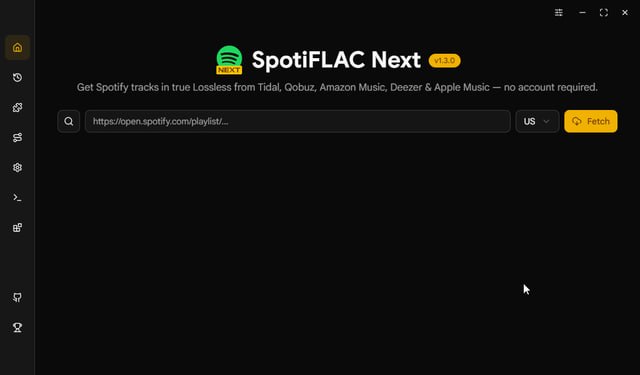
SpotiFLAC NEXT is a specialized Windows application designed to download high-quality FLAC audio from Spotify. Unlike standard Spotify downloaders that cap quality at 320kbps MP3, SpotiFLAC NEXT focuses on lossless FLAC format, preserving the original audio quality for audiophiles, DJs, and music archivists.Understanding The Dashboard
SpotiFLAC NEXT has a clean, three-panel interface designed for efficient workflow.Left Panel — Library Navigation: This panel shows your Spotify library: Playlists, Liked Songs, Albums, Artists, and Search. Click any item to view its contents in the center panel. The Dev Edition includes additional tabs for Download Queue and History.
Center Panel — Content Display: When you select a playlist or album, this panel shows all tracks. Each row displays track name, artist, album, duration, and a status icon indicating whether the track has been downloaded. You can sort by any column. Multiple selection (Ctrl+Click, Shift+Click) is supported for batch operations.
Right Panel — Download Settings: This panel appears when you select tracks or click the settings gear icon. Here you set the output format (FLAC is default; MP3, AAC, and WAV are also available), output folder location, file naming convention, and quality preferences.
Status Bar: At the bottom of the window, the status bar shows download progress, queue count, and active connection status. The Dev Edition includes a real-time bandwidth monitor.
Common Workflow Steps
1. Downloading a Single PlaylistSelect the playlist in the left panel. Click the Select All button (or press Ctrl+A). Click Download. SpotiFLAC processes the playlist sequentially. A 50-track playlist typically takes 15-30 minutes depending on source availability and internet speed.
2. Downloading Liked Songs
Click Liked Songs in the left panel. This loads all liked tracks (Spotify limits API access to the most recent 10,000). Select tracks or select all. Download. Liked songs download to a folder named “Liked Songs” with individual FLAC files.
3. Searching for Specific Tracks
Use the Search tab in the left panel. Enter artist name, track name, or album name. Results appear in the center panel. Select the correct match. Download as a single track or add to a custom batch.
4. Batch Operations
Hold Ctrl and click individual tracks to select multiple non-contiguous tracks. Hold Shift and click to select a range. Right-click selected tracks for context menu options: Download Selected, Add to Queue, Copy Track Info, or Open in Spotify.
Exporting Files
SpotiFLAC NEXT exports FLAC files directly to your specified output folder. There is no separate export step — files are written immediately upon completion.File Naming Convention
Configure naming in Settings. Available variables include:
- {track_number}: Track number from album
- {track_name}: Track title
- {artist}: Primary artist name
- {album}: Album name
- {year}: Release year
- {genre}: Primary genre
Organizing Output
For albums, SpotiFLAC NEXT can automatically create subfolders. Enable “Create album folder” in Settings. The structure becomes OutputFolder/AlbumName/Track Files.
Metadata Embedding
FLAC files include embedded metadata: track title, artist, album, year, genre, cover art, track number, total tracks, disc number, and composer. This metadata is read by any FLAC-compatible player (VLC, Foobar2000, Plex, Roon).
Productivity Tips
- Use Playlists as Batch Lists: Create a Spotify playlist named “To Download.” Add tracks to this playlist from any device. In SpotiFLAC, open that playlist and download everything at once. This is faster than searching for tracks individually.
- Schedule Downloads for Off-Peak Hours: Run large downloads overnight. The Dev Edition includes a scheduler. Set the application to start downloads at 2:00 AM and stop at 8:00 AM. This avoids daytime bandwidth contention.
- Monitor Disk Space: FLAC files consume significant storage. A typical album (10-15 tracks) uses 400-700MB. A large playlist (500 tracks) uses 15-25GB. Configure the application to pause downloads when free disk space falls below a threshold (default 10GB).
- Use History for Re-downloads: The History tab shows all previously downloaded tracks. If you lose files, right-click any track in History and select “Re-download.” The application remembers the original source and quality settings.
- Export Playlist as M3U: After downloading a playlist, generate an M3U playlist file. Right-click the playlist in the left panel, select “Export as M3U.” This creates a file that any media player can read, preserving track order.
Best Companion Tools
MediaMonkey or MusicBee are excellent for managing large FLAC libraries after download. Both support FLAC, handle metadata editing, and can organize files by artist/album. foobar2000 is the audiophile’s choice for FLAC playback. It handles large libraries efficiently and supports DSP plugins for equalization. Plex or Jellyfin can stream your downloaded FLAC library to any device. Set your output folder as a music library. Plex transcodes FLAC to MP3 for remote mobile streaming while preserving FLAC for local playback.HomePage
Note: This price Is For Single PC License. If You Want To Buy KeyGen Then You Have To Go On Telegram ID @playoutking
Our Paid Service
Looking for full-version software without limitations? You’re in the right place. Instead of wasting time on unreliable or outdated sources, unlock a powerful bundle of 10k+ premium tools covering marketing, SEO, broadcasting, automation, and business productivity — all in one place at an affordable price. This collection is specially curated for freelancers, agencies, and business owners who want fast, real results with professional tools.
Direct contact: :
Join Us For Update :
Join Us For Updated :
You Can test through AnyDesk before Buying,
And When You Are Satisfied, Then Buy It.
Unlimited PCs/Users.
Join today and upgrade your workflow with premium tools.
Looking for full-version software without limitations? You’re in the right place. Instead of wasting time on unreliable or outdated sources, unlock a powerful bundle of 10k+ premium tools covering marketing, SEO, broadcasting, automation, and business productivity — all in one place at an affordable price. This collection is specially curated for freelancers, agencies, and business owners who want fast, real results with professional tools.
Direct contact: :
Join Us For Update :
Join Us For Updated :
You Can test through AnyDesk before Buying,
And When You Are Satisfied, Then Buy It.
Unlimited PCs/Users.
Join today and upgrade your workflow with premium tools.